
How to install and use Expolita in Chrome
A guide to getting started, understanding suggestions and solving common problems.
Install the Chrome extension
Open the official Expolita listing in the Chrome Web Store, choose “Add to Chrome” and confirm installation. Open the extension panel and create a free account with your email and a password. Store your single-use recovery code somewhere safe.
Choose a language and check your writing
Choose English (US or UK), Catalan, Spanish or French, or leave automatic detection on. Type in a compatible text field and pause. Read the explanation for a suggestion before applying it.
Compatibility with web text fields and editors
Expolita supports compatible text fields and web editors. It includes integrations with Google Docs and Word Online; changes to those platforms may affect how they work. Not every website, desktop application or protected browser field is supported.
If no suggestions appear
Check that you are signed in, the extension is enabled on the site and you have an Internet connection. Try “The new proposal aim to help” and select the language manually for short text. Reload the page after installation. When contacting support, include the browser, page and steps without sending confidential text.
What the checker can detect
It can suggest spelling, agreement, grammar, punctuation, typography and style changes, depending on the language and available rules. It can miss errors or suggest an incorrect change. Check the context, add your own terms to the personal dictionary and undo a correction with Ctrl+Z.
How it differs from Chrome’s spell checker
Chrome offers basic or enhanced spelling checks depending on your system and settings. Expolita adds its own grammar, typography and style suggestions, rule explanations and a personal dictionary. Neither checker guarantees to find every error.
Who maintains Expolita
Expolita is a language-checking project maintained by its developer. It uses the open edition of LanguageTool 6.6, does not include LanguageTool Premium rules and is not affiliated with LanguageTool. Read the licences or contact support about functionality or privacy.
Where Expolita works
The website editor and the extension are two different ways to check text. The extension requires Chrome, a free account and an Internet connection. This table distinguishes checks on the public website from tests using local replicas.
Status reviewed on .
| Where | Available verification | Limits to know |
|---|---|---|
| expolita.pro editor | Checking, applying and undoing a correction verified on the public website. | No account. Up to 5000 characters; click “Check text” for long text. |
| Text fields and web editors | Adapters exist for ordinary text fields and editable content areas. | Compatibility depends on the editor. Password, protected and disabled fields are excluded. |
| Gmail | Message-body adaptation and an automated test using a local replica. | Manual validation in current Gmail is pending. The local test does not certify all its features. |
| Google Docs | Dedicated adapter and automated tests using a local editor replica. | Manual validation in current Google Docs is pending. Reload the document after installing or updating the extension. |
| Word Online | Dedicated adapter and tests using a local editor replica. | Manual validation in current Word Online is pending. This does not cover desktop Word. |
| Desktop applications and internal Chrome pages | Outside the scope of this extension. | Check text in the web editor and copy the result into your application. |
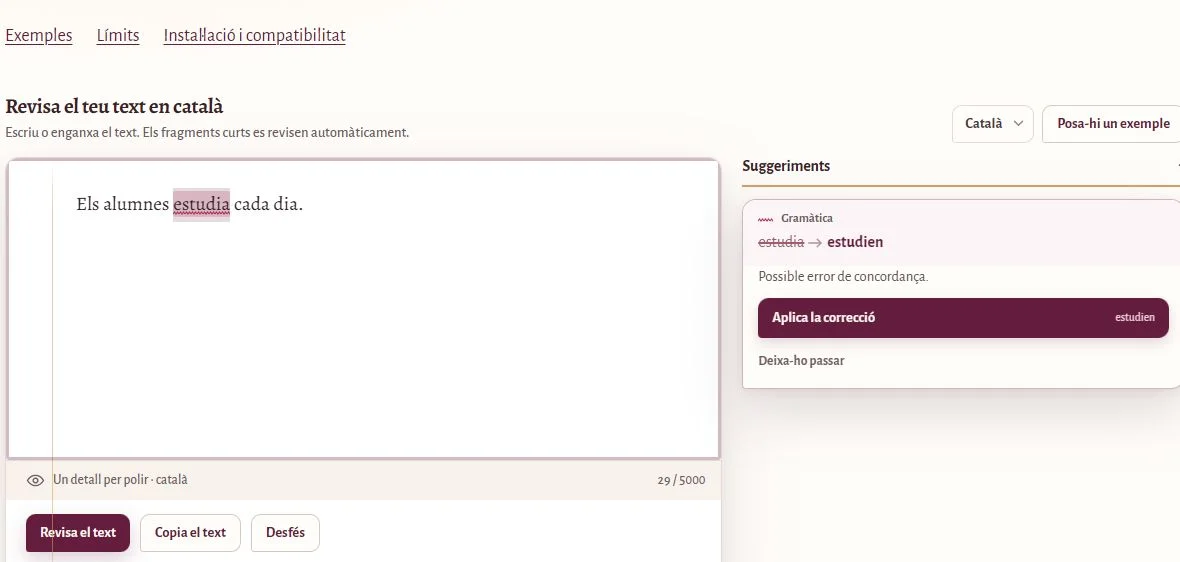
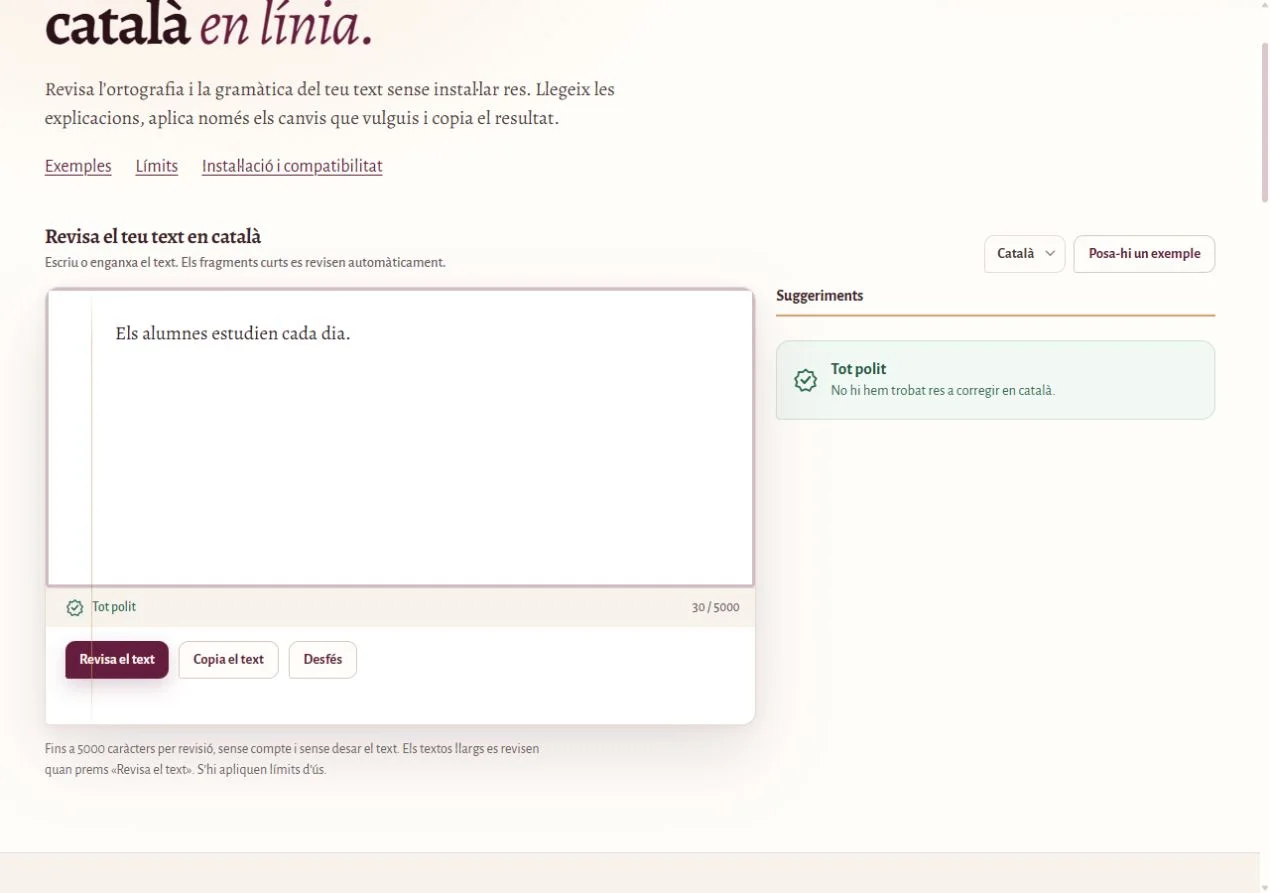
A real correction, step by step
Screenshots from a session in the public editor on 25 October 2026. The interface and example are in Catalan. They show the web editor, not the extension running inside Google Docs or Word.
Starting text: Els alumnes estudia cada dia.
Text after accepting the suggestion: Els alumnes estudien cada dia.
- Paste “Els alumnes estudia cada dia.” and choose Catalan. This short text is checked automatically.
- Open the agreement warning. Read the explanation and click “Aplica la correcció” to accept “estudien”.
- The result is “Els alumnes estudien cada dia.”. Copy it or click “Desfés” to restore the original.
If suggestions do not appear or a change fails
- Check that you are signed in to the extension, it is enabled on this site and you have an Internet connection. Reload the page after installing or updating.
- Try a short sentence without personal data and select the language manually. If the website editor also fails, wait a few minutes: a usage limit may have been reached.
- In Google Docs, place the cursor in the paragraph you want checked. If you edit text while a suggestion card is open, wait for a new check before applying it.
- If the document is read-only or the editor rejects the replacement, copy a passage into the web editor. You do not need to disable browser protections.
To report a problem, include your Chrome and Expolita versions, the site, language and steps using a test sentence. Do not send passwords, recovery codes or private documents.
Questions about the Expolita checker
Is Expolita free?
Yes. The extension and web editor are free, with no ads or analytics.
Do I need an account?
You need a free account for the extension. The web editor works without an account.
Which languages does it check?
English, Catalan, Spanish and French. Choose US or UK spelling conventions for English.
Is my text sent to a server?
Yes, over an encrypted HTTPS connection to Expolita’s server. It is processed in memory and discarded when the request ends. It is not stored or used to train models. An Internet connection is required.
Is there a text limit?
The web editor checks up to 5000 characters per check. The extension checks editor fragments with its own limits. Both remain subject to the service’s usage limits.
Does it change my text automatically?
No. You must apply each correction. You can dismiss a suggestion or undo a change with Ctrl+Z.
Does it work with Google Docs and Word Online?
Integrations are included, but platform changes may affect how they work. See the compatibility guide if you encounter a problem.